 cmds
How to use cmds
From installing to keeping an eye on your agents and answering them from your phone. Every screenshot is the real app with demo data.
1Install and first launch
- Open the DMG and drag
cmds.appto Applications (or~/Applications), then open it from there. To build from source, see the README (needs Xcode, XcodeGen and Zig). - If the macOS firewall is on, macOS asks about incoming connections. Choose Allow if you want to use the iPhone/iPad companion; the terminal works either way.
- Allow notifications, so panes that need you can notify you while cmds is in the background.
- Updates are automatic (0.2.0 and later): cmds checks once a day, downloads a new version and installs it when cmds quits. cmds › Check for Updates… installs it now; turn it off in cmds › Settings… › Updates.
- Optional: cmds › Install Command Line Tool… links
/usr/local/bin/cmds, socmdsalso works in other terminals (terminals inside cmds have it already).
cmds opens with one workspace: a terminal in your home directory.
2Workspaces and splits
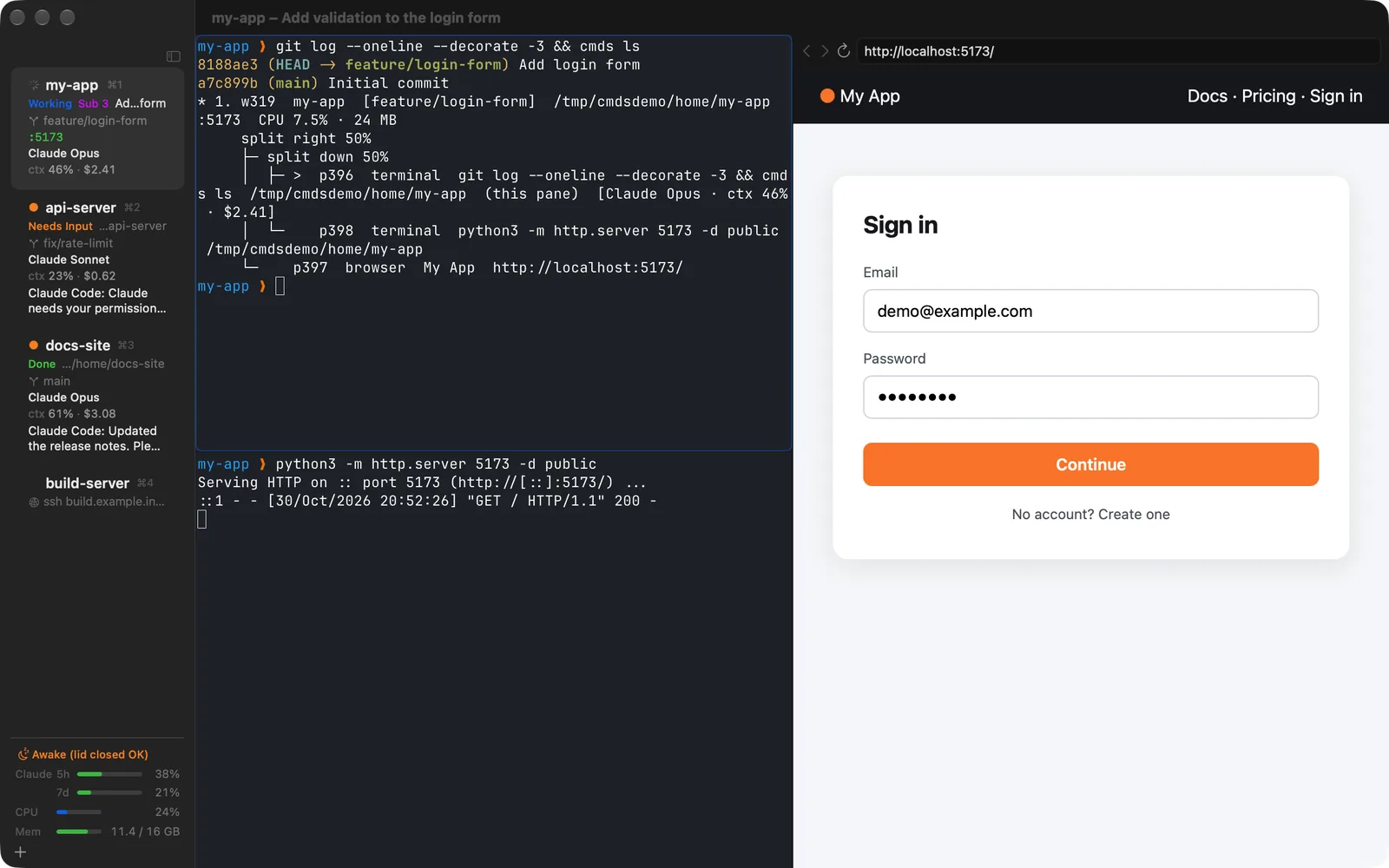
- ⌘N opens a workspace, ⌘1…⌘9 switch, ⇧⌘R (or a double-click) renames. Drag rows to reorder.
- ⌘D splits right, ⇧⌘D down. ⌥⌘ + arrows move between panes, ⇧⌘↩ zooms a pane, ⌘W closes it.
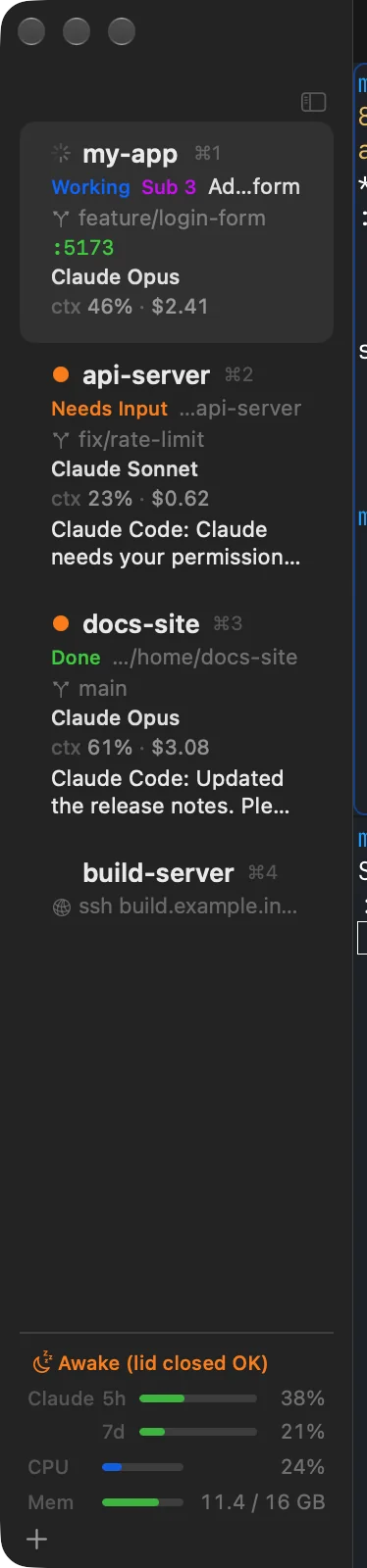
- Each sidebar row shows the git branch, directory, listening ports, the agent's state and task, and the latest notification. ⌥⌘F filters; View › Group Workspaces by Project groups them.
- When a program in a pane you are not looking at sends a notification (OSC 9/777, the bell,
cmds notify), the pane lights up with an orange ring. ⇧⌘U jumps to the latest.
3Tiled view
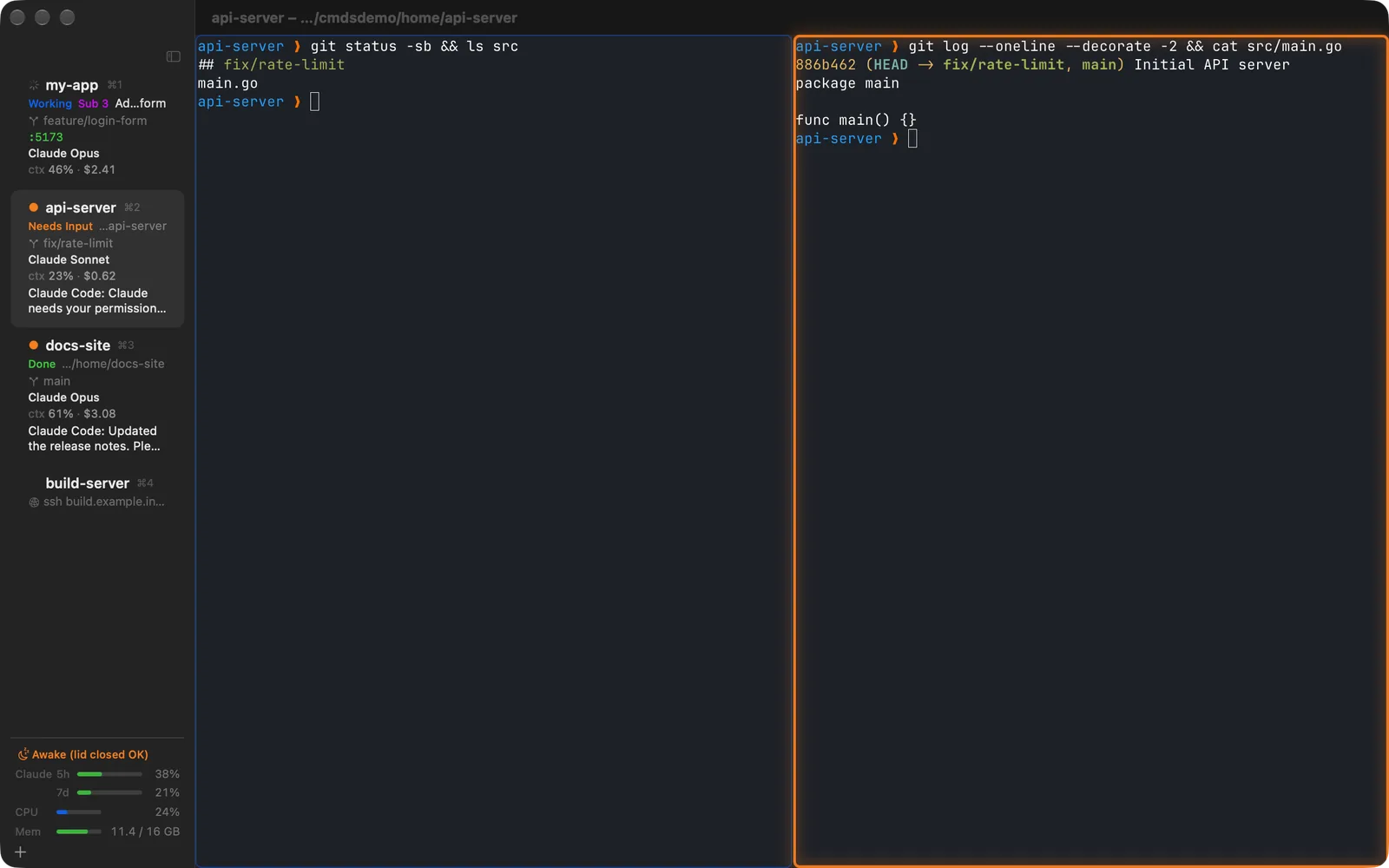
Show several workspaces side by side as live tiles you can type in.
- ⌘-click (add/remove) or ⇧-click (range) rows in the sidebar, and the content area tiles them.
- View › Tile All Workspaces (⌃⌘T) tiles everything, up to nine; press it again for one workspace.
- You can also drag a sidebar row onto the content area (an edge puts it beside, above or below; the middle swaps). Drag a tile's header to move it, or onto the sidebar to remove it.
- Tile headers show the state and task; a tile that needs you gets the ring. ⇧⌘↩ shows one tile alone.
- Claude Code subagents (Task / Agent tool) appear as cards under the tile: type and description, current action, elapsed time and tokens (needs the subagent hooks).
4Browser and preview
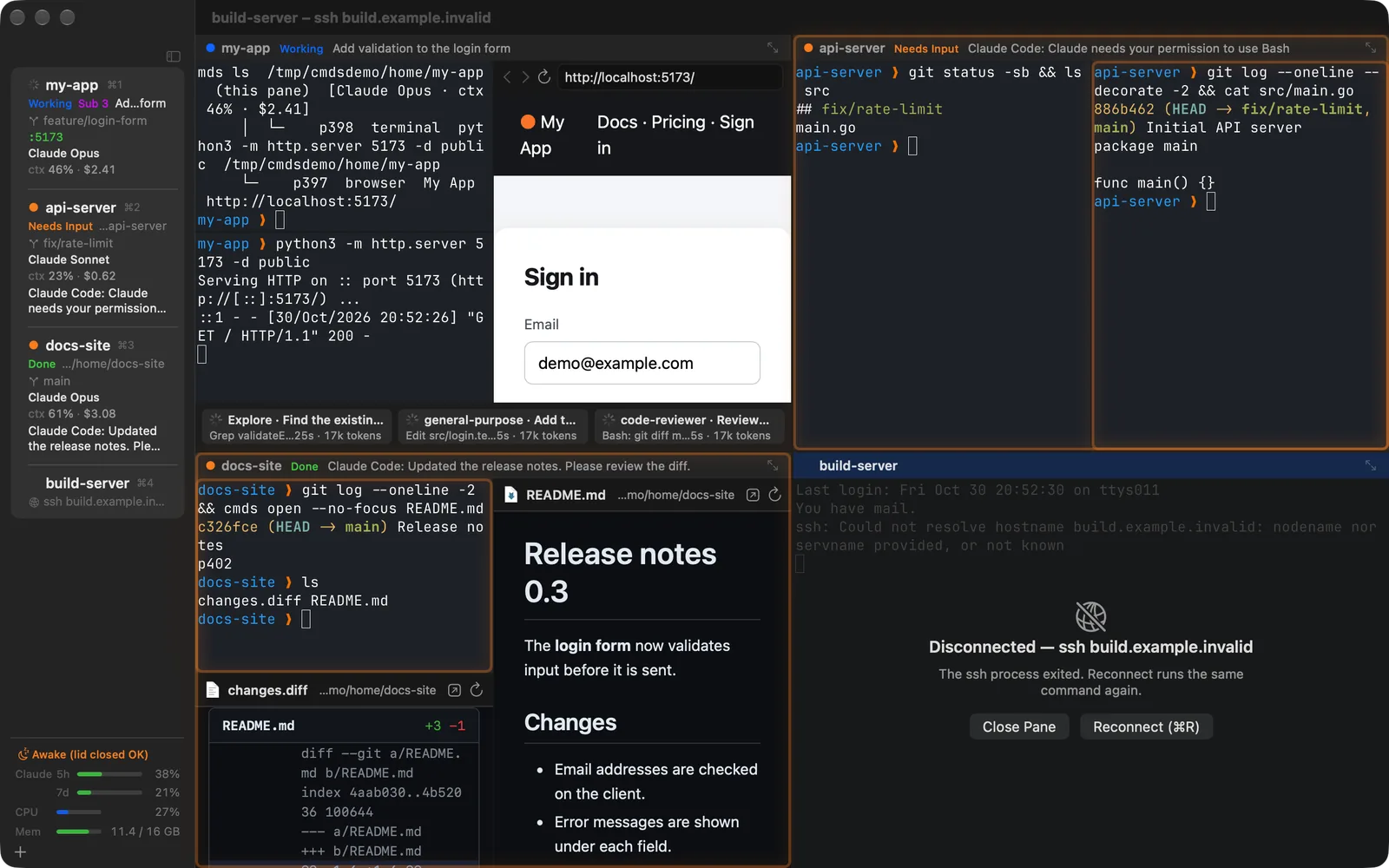
- ⇧⌘B opens a browser to the right of the terminal. ⌘L address bar, ⌘R reload, ⌘[ / ⌘] back / forward.
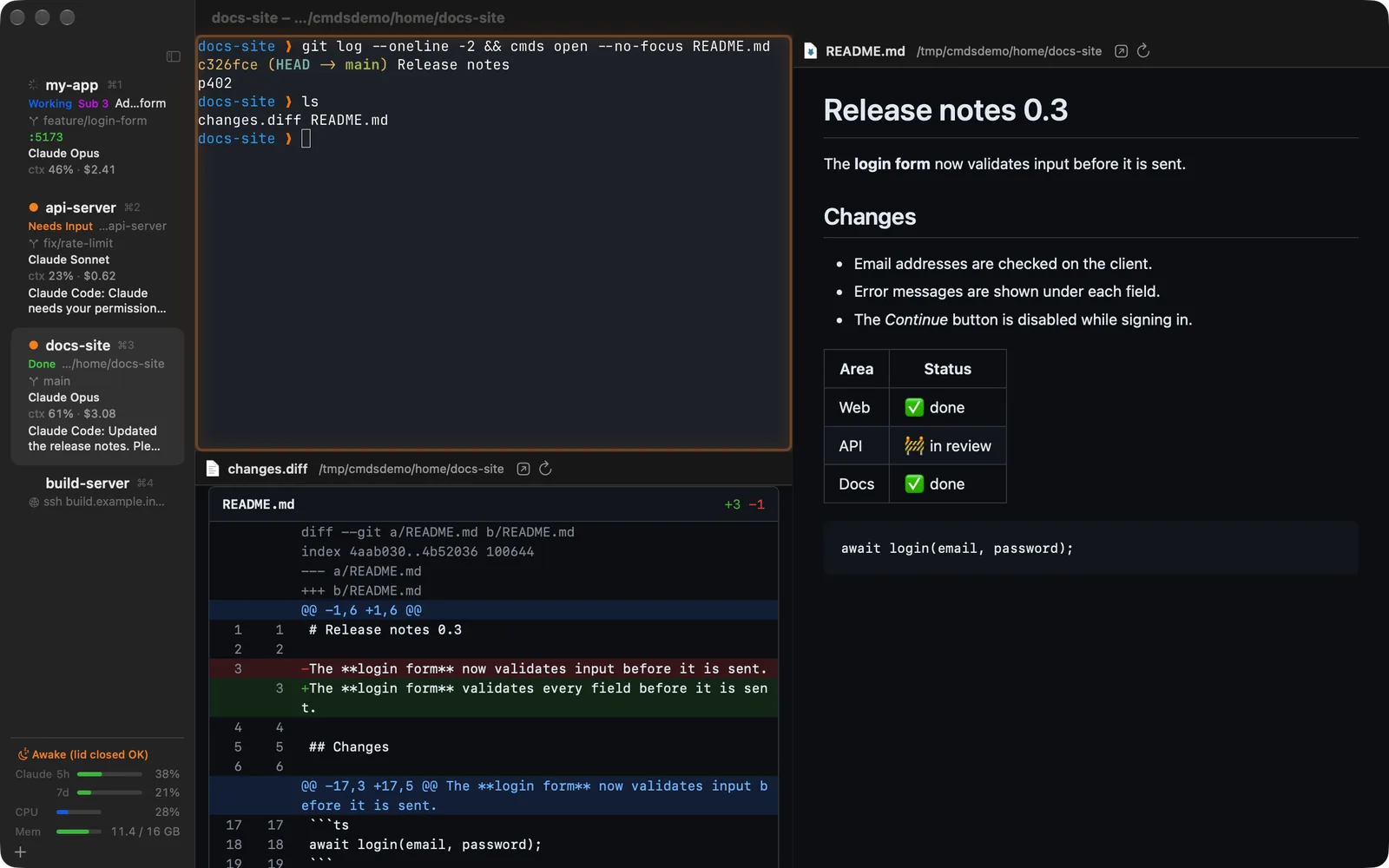
- ⇧⌘O (File › Open in Preview…) or ⌘-click on a path printed in the terminal shows the file in a preview pane: images, PDF, video, Office and text through Quick Look, rendered Markdown, coloured diffs.
- Previews reload when the file changes, so reports and images an agent writes show up right away.
5The cmds command
Every cmds terminal knows which pane it is (CMDS_PANE_ID), so cmds acts on the pane you run it in.
cmds ls                                   # workspaces and panes
cmds split down -- npm run dev            # dev server in a new pane below
cmds browser open http://localhost:3000   # open it in a browser pane
cmds open README.md                       # preview a file
git diff | cmds open --diff -             # coloured diff
make test; cmds notify "tests done: $?"   # light this pane when finished
cmds stats                                # CPU and memory per workspace and for the Mac
cmds --help and cmds <command> --help list everything; every command prints JSON with --json.
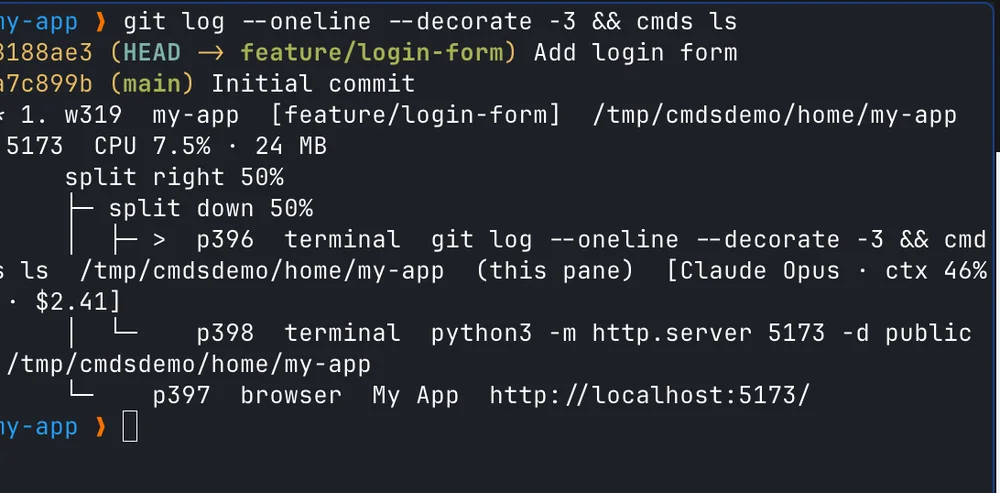
cmds ls shows the split tree and agent usage too.6Setting up Claude Code and Codex
Notifications and state (hooks)
Add to ~/.claude/settings.json (or a project's .claude/settings.json). When Claude asks for permission or input, the row shows Needs Input and the pane lights up; when a turn ends it shows Done, and Working again once you answer. SubagentStart / SubagentStop feed the subagent cards and the “Sub 3” count in the sidebar.
{
  "hooks": {
    "Notification": [
      { "hooks": [{ "type": "command", "command": "command -v cmds >/dev/null && cmds hook claude || true" }] }
    ],
    "Stop": [
      { "hooks": [{ "type": "command", "command": "command -v cmds >/dev/null && cmds hook claude || true" }] }
    ],
    "UserPromptSubmit": [
      { "hooks": [{ "type": "command", "command": "command -v cmds >/dev/null && cmds hook claude || true" }] }
    ],
    "SubagentStart": [
      { "hooks": [{ "type": "command", "command": "command -v cmds >/dev/null && cmds hook claude || true" }] }
    ],
    "SubagentStop": [
      { "hooks": [{ "type": "command", "command": "command -v cmds >/dev/null && cmds hook claude || true" }] }
    ]
  }
}
Usage and limits (status line)
Add one line to your status-line script after it reads its input (input=$(cat)). The sidebar then shows model, context, cost and the 5-hour / 7-day limits. Session resume needs this too.
[ -n "$CMDS_PANE_ID" ] && command -v cmds >/dev/null 2>&1 && printf '%s' "$input" | cmds hook claude-status >/dev/null 2>&1Without a status-line script, "statusLine": {"type": "command", "command": "cmds hook claude-status"} works as well (the status line then stays empty).
Skill and Codex
- MCP server: register
claude mcp add --scope user cmds -- cmds mcp(Codex:[mcp_servers.cmds]command = "cmds"args = ["mcp"]in~/.codex/config.toml), and agents in a cmds terminal open web pages in a cmds browser pane instead of Chrome and check them with screenshots and JavaScript. They can also show files in previews and set the sidebar status. - Skill: copy
integrations/claude/skills/cmds/SKILL.mdto~/.claude/skills/cmds/(Claude Code) or~/.codex/skills/cmds/(Codex), and the agent uses helper panes and previews without stealing your focus, and opens web pages in a cmds browser pane instead of Chrome. - Codex: usage needs no setup. For notifications set
notifications = true,notification_method = "osc9"andnotification_condition = "always"under[tui]in~/.codex/config.toml.
Reading the sidebar
- Working (blue), Needs Input (orange), Done (green), Idle and Stopped (grey)
- The second line is the agent's task (Claude Code's title), with “Sub 3” while subagents run
- Model, context use and the session's cost
- At the bottom: account limits (5-hour, 7-day, Claude's spend limit) and the Mac's CPU and memory; orange from 80 %, red from 95 %
7Pairing an iPhone/iPad
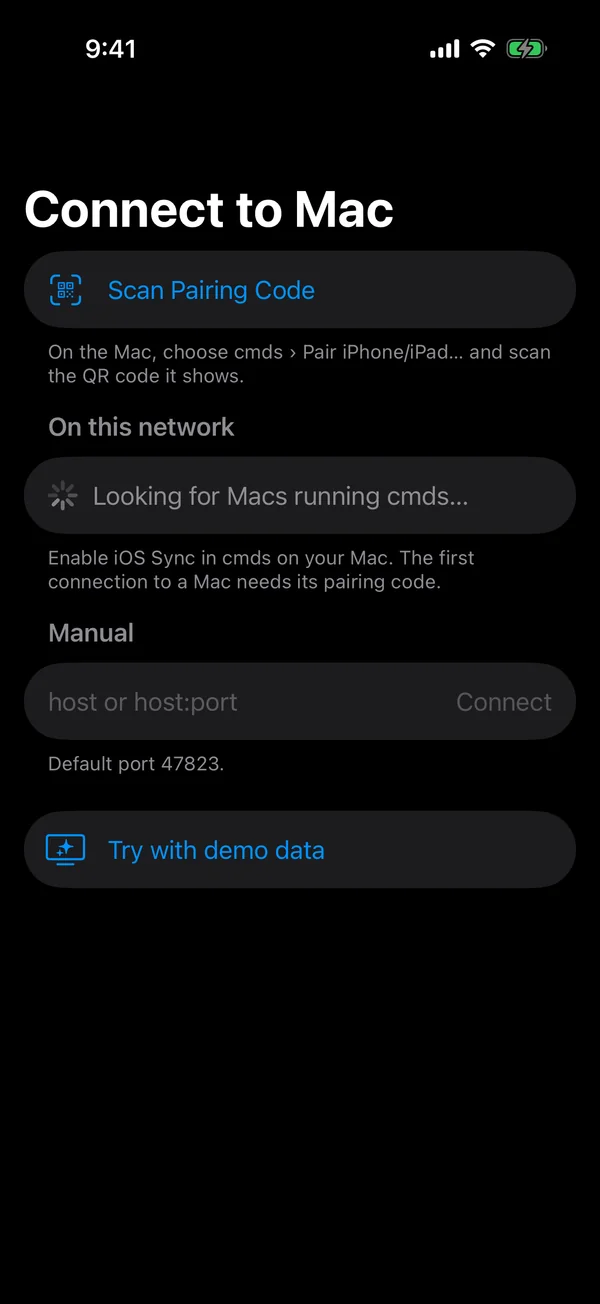
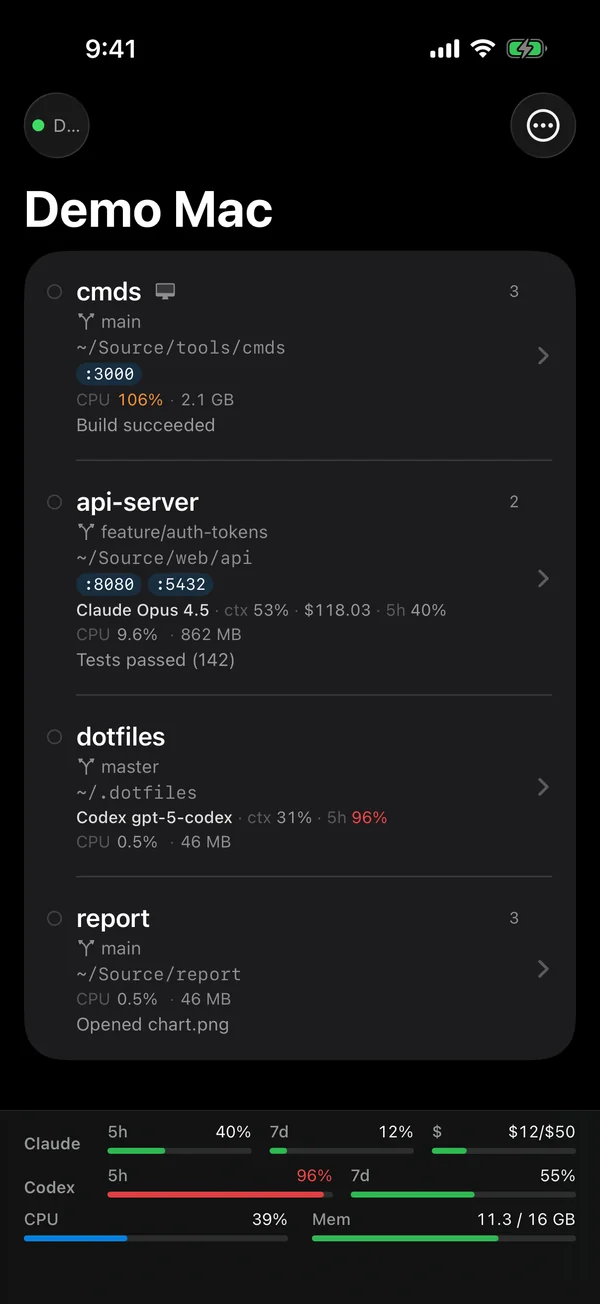
- On the Mac choose cmds › Pair iPhone/iPad…. The window shows a QR code and a 6-digit code (valid only while it is open).
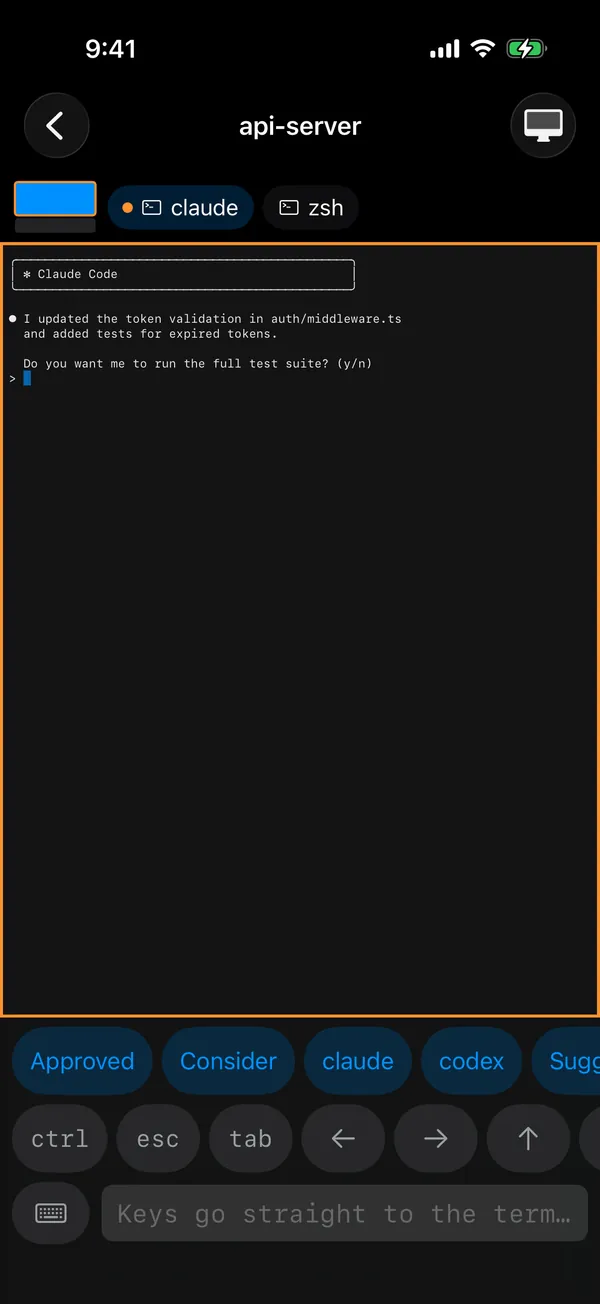
- In the companion tap Scan Pairing Code and scan the QR code. Without the camera, pick the Mac, compare its identity and enter the 6-digit code.
- Once connected you see the Mac's workspaces. Open one to see its terminal live and answer with the key bar or the input field. The shortcut buttons above the key bar (Approved, Consider, Suggest an alternative, Double-check it, claude, codex) send their text and Return; long-press one to insert it without Return. Edit them in ⋯ › Settings….
Not on the same network? Without Wi‑Fi the phone uses Bluetooth LE, and away from home it goes through your own SSH server set up under cmds › Remote Access via SSH…. Every path carries the same TLS session pinned to your Mac's certificate.
Get the free iPhone and iPad app, cmds Companion, from the App Store.
8SSH workspaces
- ⇧⌘N (File › New SSH Workspace…) asks for a host, completed from
~/.ssh/config; your keys and jump hosts work as usual. - cmds forwards a restricted socket over the same SSH connection. Run Pane › Install Remote Helper… once, and
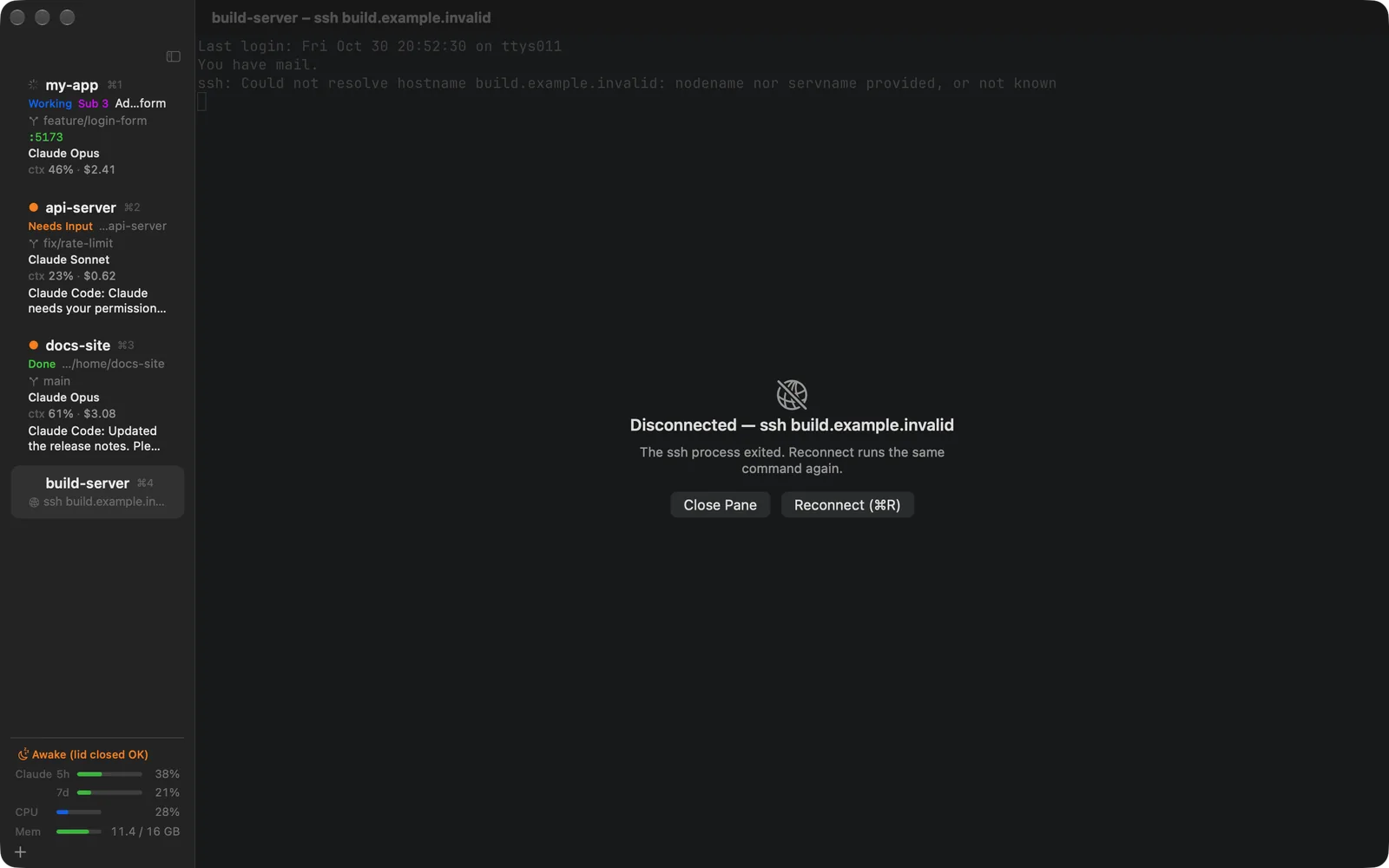
cmds notifyand the Claude Code hooks work on the server too: notifications and usage reach your sidebar. - When the connection drops the pane says “Disconnected”; ⌘R or Reconnect runs the same command again.
9Files panes
A folder on your Mac or on an SSH host, as a list next to your terminals. Two side by side make a two-pane file manager.
- ⇧⌘E (File › New Files Pane) opens the focused terminal's directory to the right. From a terminal:
cmds files [PATH]. - ↩ opens, Space shows the file in the preview pane. Inside a Git repository a column shows what changed (
M,A,?…). With Follow Terminal on, the pane goes wherever youcdin the terminal. - F5 / F6 copy or move to the other pane; drag and drop, the Finder and ⌘C / ⌘V work too. When a name is taken, choose Keep Both, Replace or Skip.
- F2 renames, F7 makes a new folder, ⌘⌫ moves to the Trash. Nothing is ever deleted for good.
- Dropping files on a terminal types their paths, quoted for the shell.
Folders on SSH hosts
- ⌥⇧⌘E (File › New Remote Files Pane…) asks for a host and a folder; ⇧⌘E in an SSH pane opens the pane's remote directory. From a terminal:
cmds files HOST:PATH. Nothing is installed on the server (SFTP). - cmds runs your own
ssh(~/.ssh/config, keys, agent, jump hosts). It never asks for or stores a password and never adds host keys: password-only hosts and unknown or changed host keys are refused, with a note on what to do. - Open and preview use a downloaded, read-only copy. Move to Trash moves items to the server's own Trash (
~/.local/share/Trash) and never deletes them.
Transfers
- Copies and moves between the Mac and a host, or two hosts, run in the background in a transfer queue. Follow them in the pane and in Window › Transfers (⌥⌘T), with Pause, Cancel, Retry and a log;
cmds transfersshows the same. - Files are written under a temporary name and get theirs only when complete. Cancel removes only what the transfer wrote.
10Schedules
Window › Schedules… or cmds schedule sets up work for later. Schedules run while cmds runs.
- When: once, on weekdays at set times, or when a Claude account's or Codex's limit resets (every time, with Every time it resets).
- What: start a workspace in the background (folder, account, a first command or a first prompt for Claude Code), continue a Claude Code or Codex session, or type into an existing pane (a command at an empty shell prompt, or a prompt into an idle agent).
- Safely: nothing is typed into a busy agent, one asking for input, or a pane running another program, and nothing runs twice. A run that cannot go ahead is skipped, and the history says why.
- A notification a minute before a run offers Skip, and the sidebar's footer shows the next run. Runs missed while the Mac slept or cmds was not running get one catch-up run, if not too late.
- When every account has hit its limit, Continue at 15:01 in the pane's bar makes a schedule that types
continueafter the reset.
# Continue this pane's session when the "work" account's limit resets
cmds schedule add --name "Continue after reset" --after-limit work --continue

# Weekdays at 09:00: start Claude Code in ~/src/app and give it a task
cmds schedule add --name "Morning tests" --every weekdays --time 09:00 \
  --start ~/src/app --account auto --prompt "Run the test suite and summarise failures" -- claude

cmds schedule list      # list
cmds schedule history # past runs11Keyboard shortcuts
| Action | Key |
|---|---|
| New workspace / new SSH workspace | ⌘N / ⇧⌘N |
| Select workspace 1–9 | ⌘1 … ⌘9 |
| Next / previous workspace | ⇧⌘] / ⇧⌘[, ⌃Tab / ⌃⇧Tab |
| Rename workspace | ⇧⌘R |
| Split right / down | ⌘D / ⇧⌘D |
| Move between panes | ⌥⌘← → ↑ ↓ |
| Zoom pane (tile) | ⇧⌘↩ |
| Tile all workspaces | ⌃⌘T |
| Jump to latest attention | ⇧⌘U |
| Browser split / open in preview | ⇧⌘B / ⇧⌘O |
| Files pane / remote files pane | ⇧⌘E / ⌥⇧⌘E |
| Copy / move to the other pane | F5 / F6 |
| Transfers | ⌥⌘T |
| Address bar / reload (reconnect SSH) / back / forward | ⌘L / ⌘R / ⌘[ / ⌘] |
| Close pane / close workspace | ⌘W / ⇧⌘W |
| Toggle sidebar / compact sidebar | ⌘B / ⌃⌘S |
| Filter workspaces | ⌥⌘F |
| Bigger / smaller / actual size | ⌘+ / ⌘− / ⌘0 |
| Settings | ⌘, |